
Running Multi FileFeeds in production
The day-2 operations side of Multi FileFeeds: saving versions, promoting across environments, scheduling, triggering from your app, event webhooks, and monitoring.
Once the agent has produced the right output against a test file and you've reviewed and approved the proposed transforms, the next step is operating the Multi FileFeed in production. That means deciding when it runs, how new versions reach customers, and how you find out when something goes wrong. This page walks through the operational surface.
The agent does the work of building the pipeline. The settings on this page govern how that pipeline executes once it's live.
Saving and promoting versions
Unsaved changes in the transform builder don't run for real imports. To put changes into production:
- From the transform builder, Save your changes. This creates a new saved version of your transforms (including anything the agent proposed and you accepted).
- From the MFF's settings, promote the saved version to the next environment (Development → Staging → Production, or whatever ladder your organization uses).
- Verify in the target environment by triggering a test import.
Promotion is explicit (there's no automatic mirroring between environments). This means the version running in Production is exactly the version you've signed off on. For the environment model, see Using Environments.
Templates have their own per-environment versioning (a template is pushed to Production independently of the MFF). When you promote an MFF version, make sure the templates it references have also been promoted.
Scheduling recurring runs
For sources that support it (SFTP, S3, Google Sheets, Azure SharePoint), OneSchema can pull files on a schedule:
- Hourly. Useful for frequent partner drops.
- Daily. The default for nightly batch flows.
- Custom cron-style schedules. For cases that don't fit the standard cadences.
Configure the schedule on the source connection inside the MFF's settings. When the schedule fires, OneSchema checks the source for new files, creates one MFF import per file (or per batch), and runs the latest saved version of your transforms against each.
If the source has no new files at the scheduled time, the run is a no-op: nothing is imported and no destination delivery is attempted.
Triggering runs from your app
Schedule-based runs are great for recurring intake, but a lot of integrations are event-driven: your app needs to push a file right now. For those, your app triggers an MFF run via the API:
- Create an import on the MFF.
- Attach files (direct upload or upload-from-S3).
- Submit the import for processing.
The same pattern works from an AWS Lambda function, a Cloud Functions handler, a webhook your app receives, or any backend code path. See the Multi FileFeeds API reference for the full endpoint contract.
Event webhooks
OneSchema can POST events back to your application when an MFF import resolves:
multi_file_feed_import_success. The import completed successfully and (if a destination is configured) the destination delivery has been attempted.multi_file_feed_import_error. The import failed; the payload includes the failure category.
Create event webhooks under Developer → Webhooks → Multi FileFeeds, then attach the webhook to each MFF that should use it. See Using Event Webhooks for setup steps.
Payload
Both events share the same base payload:
{
  "request_id": "req_wfevt_<uuid>",
  "event_type": "multi_file_feed_import_success",
  "multi_file_feed_id": 123,
  "multi_file_feed_name": "My MFF",
  "multi_file_feed_metadata": { "customer_id": "acme-corp" },
  "created_at": "2026-06-15T21:00:00.000Z",
  "multi_file_feed_import_id": 456,
  "uploaded_file_names": ["transactions_june.csv"]
}| Field | Type | Description |
|---|---|---|
request_id | string | Unique identifier for this webhook delivery. Use it for deduplication. |
event_type | string | multi_file_feed_import_success or multi_file_feed_import_error. |
multi_file_feed_id | integer | The MFF that owns the import. |
multi_file_feed_name | string | Display name of the MFF. |
multi_file_feed_metadata | object | Custom metadata set on the MFF (empty object if none). |
created_at | string | ISO 8601 timestamp of when the event was created. |
multi_file_feed_import_id | integer | The import that resolved. |
uploaded_file_names | string[] | Original file names that were uploaded for this import. |
Error event details
The multi_file_feed_import_error payload includes one additional field:
| Field | Type | Description |
|---|---|---|
error_type | string | One of Runtime Error, Transforms Error, Validations Error, or Interrupted. |
- Runtime Error — an infrastructure or system-level failure (e.g., the processing job was terminated).
- Transforms Error — a transform produced an error during execution (e.g., a code action threw an exception or a node couldn't resolve its inputs).
- Validations Error — the import completed but the output contained validation errors.
- Interrupted — the import processing job was interrupted before completing (for example, by a timeout or worker restart).
The webhook payload does not include the full error message. To retrieve detailed error information, call the Get import errors endpoint with the multi_file_feed_import_id from the payload.
Webhook delivery semantics
- OneSchema sends one webhook per import resolution. If three files are submitted as three separate imports, you receive three webhooks.
- If a
secret_keyis configured on the webhook, requests are authenticated with HTTP Basic Auth (the secret key as the password, no username). - Environment variables set on uploaded file contexts are available for substitution in the webhook URL and secret key.
Limitations
Event webhooks are delivered when an import reaches a terminal state (success or one of the error states). There are cases where no webhook is sent:
- Never-submitted imports. An import that is created but never submitted stays in
initializedstatus and does not trigger any webhook. - Stuck imports. If an import gets stuck before completing, it may remain in
submittedorrunningstatus. OneSchema automatically marks these as failed after approximately 12 hours, but this cleanup does not fire an error webhook.
For critical pipelines, we recommend supplementing webhooks with periodic polling of the Get import endpoint to catch any imports that may not have received a webhook.
Monitoring runs
The MFF's runs page shows every recent import, with status, row counts, and per-template outcomes. From any individual run you can:
- See which transforms produced which outputs.
- Inspect per-cell validation errors and warnings.
- Re-run the import without re-uploading the file (useful after you've fixed a transform).
- Download the validated output for manual inspection.
For organization-wide visibility, the USAGE TRACKING section covers how to track file usage and credits across your account.
Re-running and recovery
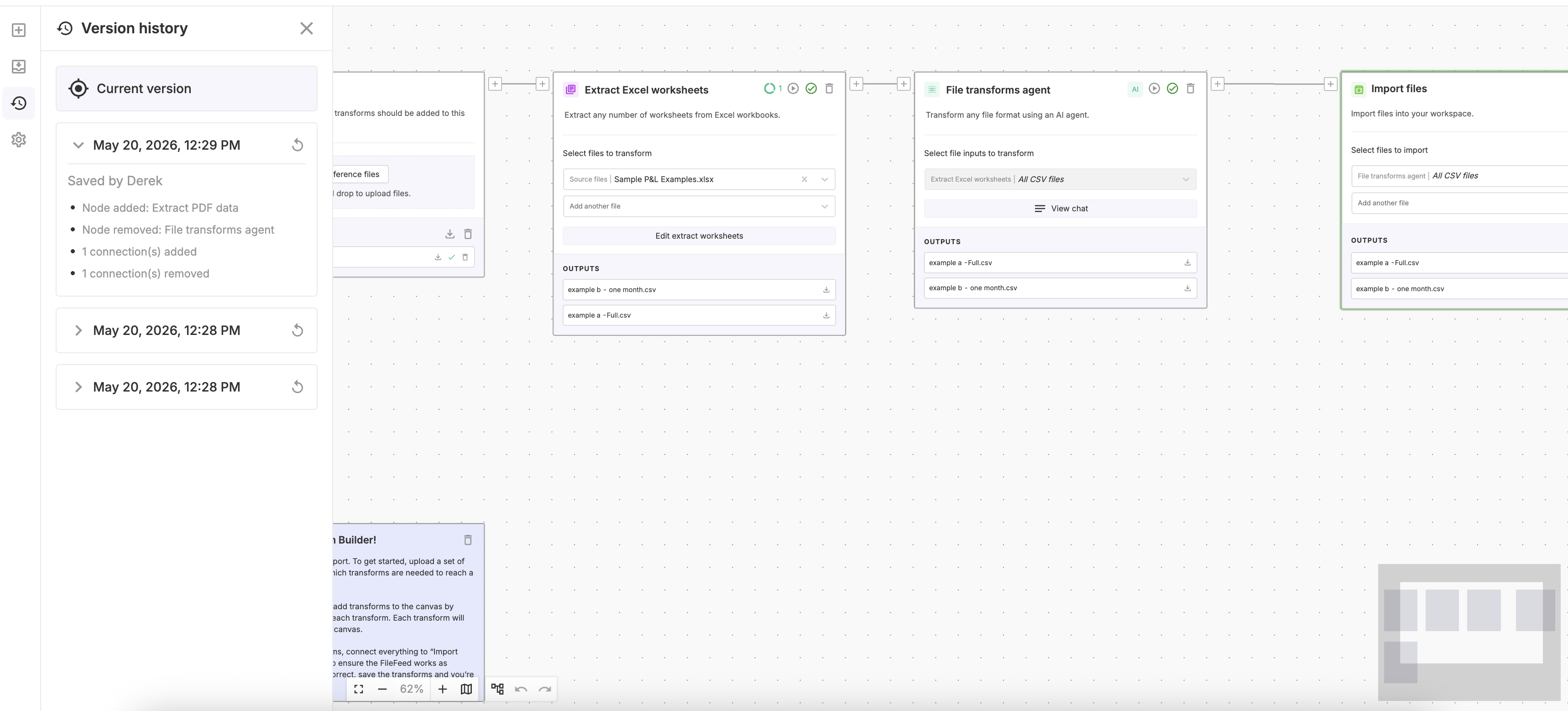
A failed run can almost always be re-run after you've fixed the underlying issue:
- Saved-version regression. Revert to a prior saved version, or roll forward a fix (often by re-running the agent against the failing reference file).
- Source file issue. Fix the source file and re-create the import.
- Destination delivery failure. Re-trigger destination delivery without re-running the transforms (the validated output is already produced).
- Transient failure. Many transient failures auto-retry; for the rest, re-running the import is safe and idempotent.
What good operations looks like
A few habits that pay off:
- Staging first. Every change to a saved version (including anything the agent newly proposed) should first run against real-shaped data in Staging before promoting to Production.
- Alert on import failure. Pipe the import-failure event webhook to your incident channel so failures don't sit unnoticed.
- Track credits. USAGE TRACKING shows how much compute and AI usage each MFF consumes. Surprises here are usually a sign that a transform is doing more work than expected.
For deeper coverage of any of the above, follow the linked guides.
Updated about 1 month ago