
Bringing files in (Sources)
Every Multi FileFeed starts at a Source. This is the menu of every way OneSchema can take delivery of a file.
The Source files transform is the left-hand entry point of every Multi FileFeed. It's where files arrive: manually uploaded from the dashboard, pulled from a server, pushed via API, or copied directly between cloud buckets. Each MFF can mix and match multiple sources; for example, an MFF might pull nightly drops from SFTP and also accept manual uploads from your ops team when a vendor sends a one-off file.
Whatever source the file came from and however messy it is, the agent takes it from there: it reads your template, infers the right cleanup and mapping transforms, and only pulls you in for the rows or fields it can't confidently handle. This page is the menu of how files can arrive. Pick the source that matches how you'll be receiving files, and follow the linked guide.
Manual upload from the dashboard
The simplest source. From inside a Multi FileFeed, click Create import, drop a file, and OneSchema runs the saved version of your transforms against it. Useful for:
- First-time setup and reference files during MFF development.
- Ad-hoc files your ops team receives by email.
- Testing changes against a real-shaped file before promoting them to production.
No configuration required.
API direct uploads (presigned URLs)
Upload a file from your own application directly to cloud storage using a presigned URL, then submit it to a Multi FileFeed import. Files up to 5 GiB. Direct uploads are the right choice for:
- Application-driven flows where your backend orchestrates the upload.
- Files larger than what's practical to proxy through your API server.
- Programmatic ingest of customer files where you already have the file bytes locally.
See Uploading large files into Multi FileFeeds for the full three-step API recipe.
Upload from S3 (server-to-server copy)
If files already live in your S3 bucket, OneSchema can copy them directly from your bucket to its internal storage using your IAM role (no file data flows through your API server). Supports files up to 20 GiB and is the recommended path for:
- Files already produced by an upstream system that lands them in S3.
- Files larger than 5 GiB (the upper limit for direct uploads).
- Pipelines where you want the entire transfer to happen inside AWS.
See Uploading files from S3 into Multi FileFeeds for the IAM role and trust-policy setup.
SFTP pull on a schedule
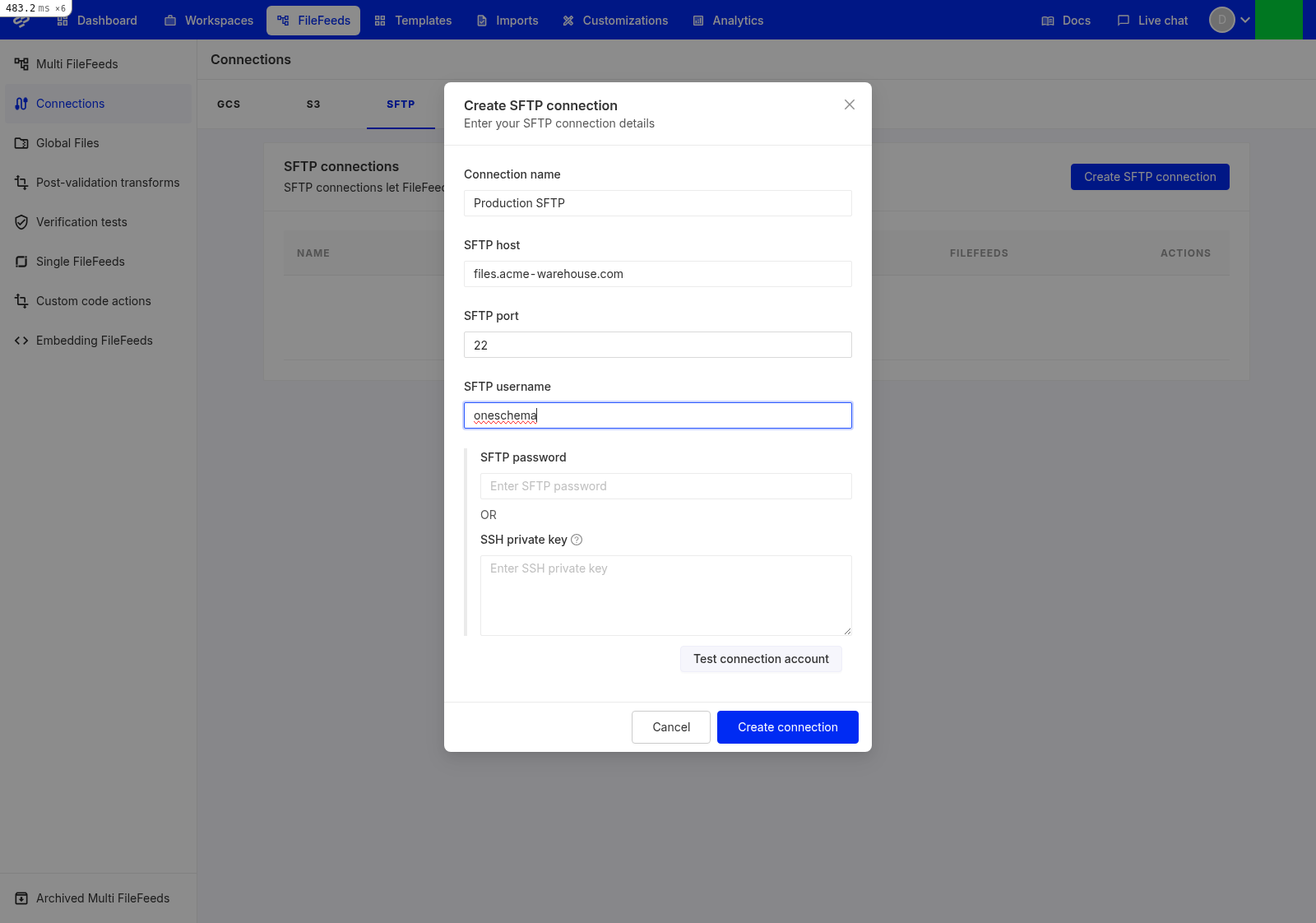
OneSchema can connect to your SFTP server and pull new files on a schedule (e.g. every hour, every day at 2am). Configure the connection once on the Settings → Connections page, then attach it to an MFF as a source. Best for:
- Recurring partner data drops.
- Legacy integrations that only speak SFTP.
- Cases where the file producer can't call an API.
See Connections and security for SFTP connection setup details.
Google Sheets fetch
Pull rows directly from a Google Sheet at the start of an MFF run. Useful for:
- Spreadsheets your customer-success or ops team maintains by hand.
- Internal data your support team curates that needs to feed your application periodically.
Connect a Google account on the Settings → Connections page, then add the Google Sheets fetch source to the MFF and pick the sheets you want to pull.
Microsoft 365 (SharePoint / OneDrive)
Pull files from SharePoint document libraries or OneDrive for Business folders on a schedule. Useful for:
- Enterprise customers that store data exclusively in SharePoint.
- Document libraries that are kept current by humans but consumed by automation.
- Customers without an existing SFTP / S3 / GCS pipeline who want OneSchema to pull from whichever drive the data already lives in.
OneSchema's Microsoft 365 integration uses delegated OAuth with the Sites.Selected scope: a user in your tenant connects their account once via OAuth, and a tenant admin separately allowlists each SharePoint site OneSchema may read (OneDrive for Business is per-user and doesn't require per-site allowlisting). The picker walks through site → drive → folder selection plus a regex file filter.
OneDrive Personal (consumer accounts) is not supported.
See Connect Multi FileFeeds to Microsoft 365 (SharePoint / OneDrive) for the full setup and Sites.Selected admin runbook.
Submitting from your own app (API)
Your application can trigger a Multi FileFeed import on demand by:
- Creating an import via the API.
- Attaching files (direct upload or upload-from-S3).
- Submitting the import for processing.
This is the standard production integration pattern when your app already knows it has a file ready and wants OneSchema to handle the cleaning + validation + delivery. The full API contract is in the Multi FileFeeds API reference.
Choosing a source
A quick decision tree:
- Your customer hands you the file in a meeting → Manual upload.
- Your backend already has the file bytes → API direct uploads.
- The file is already in S3 → Upload from S3.
- A partner drops files on a recurring schedule → SFTP pull.
- The file is a Google Sheet → Google Sheets fetch.
- The file is in SharePoint or OneDrive → Microsoft 365.
- Your app needs to push files programmatically → API direct uploads + submit.
You can mix multiple sources on a single MFF (for example, a primary SFTP pull plus a manual-upload fallback for the cases when the partner sends something out-of-band). Whatever combination you pick, the same agent handles the cleanup downstream.
Updated 5 months ago