
The transform library
A catalog of every capability the agent can express in a Multi FileFeed, grouped by what they do.
When you point a Source files transform at Import files with a template attached, the agent reads your template, scans a reference file, and proposes a chain of transforms that gets your messy input into validated, template-shaped output. This page is the catalog of capabilities the agent draws on. You almost never reach for these by hand: the agent picks the right ones, configures them, and shows you a before/after diff. You review and approve.
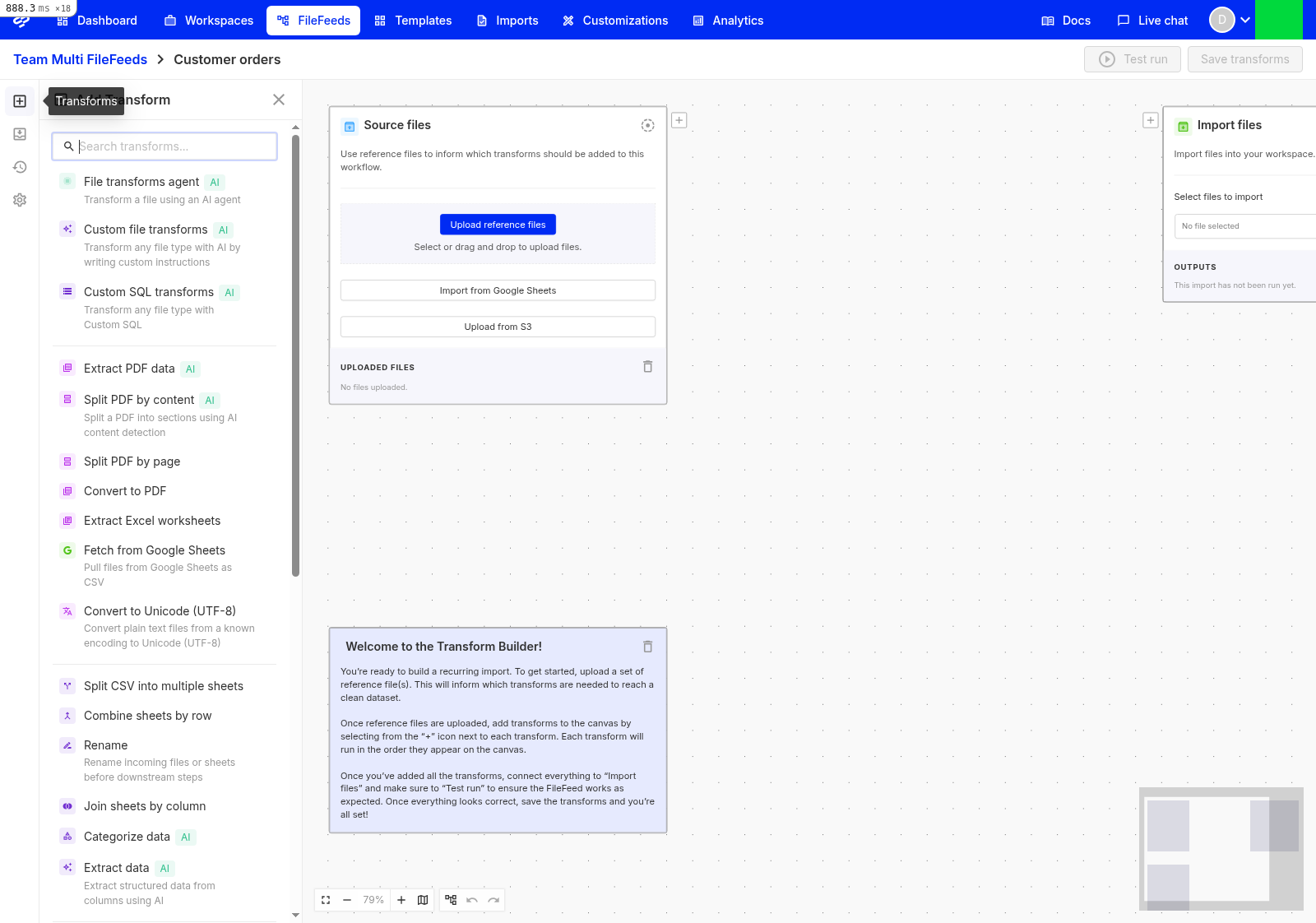
For a walkthrough of that flow end-to-end, see Build your first Multi FileFeed.
Map, clean, and validate
The agent's core capability: taking messy CSV-shaped input and reshaping it into rows that pass a template's validation.
- Mapping and inline cleanup (the agent's primary capability). The agent reads your template, scans the reference file, and produces the full set of column mappings, type coercions, and value fixes needed to satisfy your validation rules. Every cell-level fix is captured as a deterministic rule that replays on every future run; you see the before/after diff before accepting.
- Auto-fix mechanical errors. Default formatting fixes for dates, casing, numbers, and similar mechanical issues. The agent applies these silently when it's confident and escalates ambiguous cases (e.g. a date column with mixed regional formats) to you for a quick judgment call.
- Validate against template. Re-runs a list through a template's validation rules without re-mapping columns. The agent inserts this when the upstream shape is already correct and you only need a clean validation pass.
- Rename columns. A passthrough rename. The agent uses this when downstream transforms reference specific column names and the upstream output uses different ones.
Extract data from documents
When the source file isn't already a tidy CSV, the agent reaches for one of these to get the data into tabular shape before mapping.
- Extract PDF data. AI-powered structured extraction from PDFs, images, and Word documents. The agent infers the right column shape from your template and pulls the values out of the document. For sensitive workflows, Run transformation multiple times runs multiple models and validates the output to protect against hallucinations.
- Excel sheet extraction. Pull one, several, or all sheets out of an
.xlsxor.xlsworkbook as their own files. The agent picks which sheets are relevant based on your template. - Unzip files. Unpack a ZIP archive into its constituent files so each can flow to its own downstream transform.
- Fixed-width parse. Convert legacy fixed-width text files (no delimiters) into a structured table. The agent inserts this when it detects a fixed-width input shape.
- Convert to Unicode (UTF-8). Normalize input files to UTF-8; auto-detect handles UTF-8 and UTF-16 by default, while other encodings are selected explicitly.
- Convert to PDF. Convert Word docs or images to PDF so a single downstream Extract PDF data transform can handle a mixed batch.
- PDF split and PDF content split. Split a single PDF into multiple PDFs by page count or by content (e.g. one statement per customer in a 200-page bundle).
Reshape lists
Once data is in list shape (rows and columns), these change the shape without changing meaning. The agent uses them when the row-level structure of the input doesn't yet match the template's structure.
- Split list. Break a large list into smaller chunks (e.g. one file per 100,000 rows) for downstream processing.
- Merge rows. Combine multiple lists into a single list, preserving row order and column alignment.
- Join lists. Relational-style join between two lists on a key column. Useful when one file has IDs and a second file has the names you want to attach to them.
- AI Classify values. Bucket free-text values into a fixed set of categories (e.g. classify free-text job titles into your enum of role types). The agent uses this when a template column has an enum constraint and the input has free-text values.
- AI Extract data. Pull values out of unstructured text in a row when the agent needs to split a single column into several template columns.
Agent-powered and power-user transforms
These are the agentic capabilities the agent leans on directly, plus the escape hatches for when you need to hand-author logic.
- File agent. The most agentic capability in the library. Describe what you want done to a file in natural language and the agent plans the transform, shows you the approach, and (once you approve a plan) executes it against every file the MFF sees in production. Handles arbitrary file shapes, not just CSVs.
- Custom file transform. Describe what you want to do to a file in natural language, and OneSchema generates the transform script in one shot. The agent uses this whenever the work is outside the standard map/clean/reshape vocabulary; you can also invoke it directly if you want to author a one-off transform yourself.
- CSV transform agent. An interactive AI agent that asks clarifying questions, suggests column mappings and transforms, and produces a single combined transform script tailored to your spreadsheet. Useful for ad-hoc cleanup of a specific file.
- Runtime CSV agent. A runtime variant of the CSV transform agent. Runs against every file the MFF sees in production (not just a reference file), so the agent's behavior adapts per-import.
- SQL Transformer. Run arbitrary SQL against your list inputs. The right escape hatch for set-based transformations that don't fit any other capability, or when you're more comfortable in SQL than describing intent to the agent.
Reuse pipelines across MFFs
-
Call Multi FileFeed. Call another Multi FileFeed as a sub-step of the current one. Pick which upstream files to pass in; the called MFF runs its entire transform pipeline and the outputs flow back into the caller. Use this when you have a common cleaning pipeline that several different intake flows should share: define it once as a standalone MFF and call it from every parent.
Call Multi FileFeed always runs the latest saved version of the called MFF, so any improvement you ship to the called MFF automatically benefits every caller on its next run.
Decrypt files
- Decrypt files. Decrypt GPG/PGP-encrypted files inline as part of the MFF pipeline. The decryption key (PGP private key or symmetric passphrase) is retrieved at runtime from your organization's secrets manager (AWS Secrets Manager or Azure Key Vault), so sensitive material never lives in OneSchema. See Using the Decrypt Files Node for setup.
Custom validations
Beyond what a template can express, two capabilities let you write your own validation logic.
- Custom file validation. Write a validation routine that inspects an entire file (e.g. "reject if the header row doesn't match this exact schema") before it's allowed to proceed downstream.
- Custom validations on a template. For per-row or cross-row rules, define Custom Validations on the template itself.
What you'll see in practice
The agent picks from this catalog automatically when you connect Source files to Import files with a template. A few patterns to expect:
- Documents in (PDF, Excel, ZIP, encrypted): the agent leads with Extract data from documents before anything else.
- Messy CSV in: the agent jumps straight to Mapping and inline cleanup, optionally with Auto-fix mechanical errors for date/casing/number normalization.
- Multiple lists: the agent reaches for Reshape lists to combine, split, or join before mapping.
- Logic the agent can't express directly: the agent escalates to you, often with a suggested Custom file transform or SQL Transformer scaffold you can adjust.
- Logic reused across MFFs: pull out a shared pipeline into its own MFF and have the agent insert a Call Multi FileFeed step in every caller.
Updated 2 months ago