
Core concepts
The four ideas (templates, the transform builder, saved versions, and environments) that everything else in Multi FileFeeds builds on.
Multi FileFeeds is a deep product, but most of it falls out of four core ideas. Once these click, the rest of the documentation is a tour of capabilities rather than a guide to a new mental model.
Templates
Templates are your output schema and validation rules in one. A template defines:
- The columns clean data must have.
- The type and format of each column (e.g.
email,date(MM/DD/YYYY),number). - Per-column rules (required, unique, allowed values, custom validations).
- The column keys your application receives in the validated payload.
Every Multi FileFeed terminates at one or more templates. A row that doesn't pass the template's rules doesn't get imported. Templates are shared across the OneSchema Importer and Multi FileFeeds, so if you've already defined one for your Importer, you can reuse it as-is in an MFF.
See the Templates concept page for a complete reference.
The transform builder
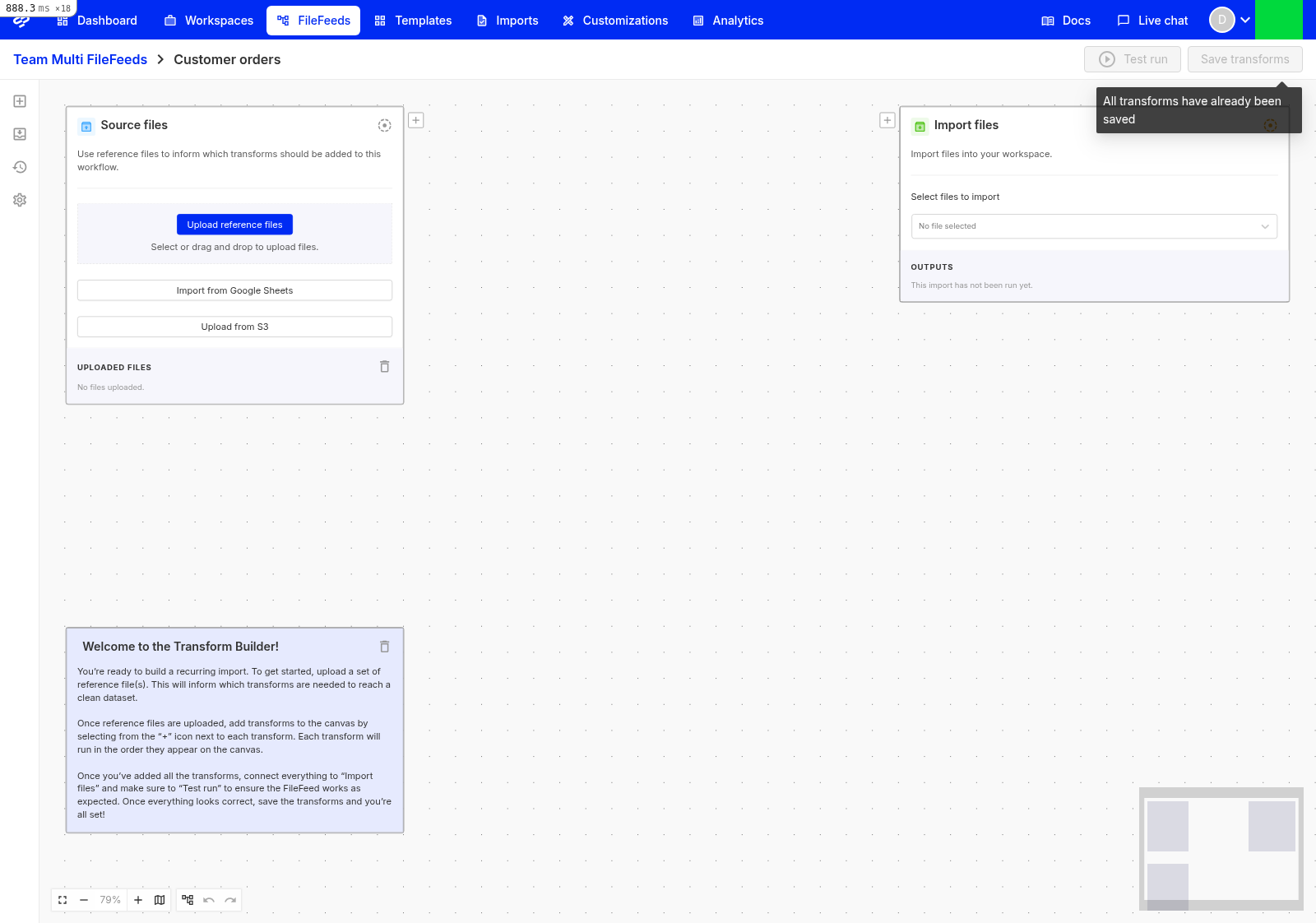
The transform builder is the visual canvas where you wire together everything that happens to a file between source and import. Every Multi FileFeed starts with two transforms already on the canvas (Source files on the left and Import files on the right), and you build the path between them by adding transforms.
A transform takes one or more files (or lists of rows) from upstream and produces one or more files (or lists of rows) downstream. The transform builder enforces the wiring rules (for example, you can't connect a list-shaped output to a transform that expects a file) and shows you which downstream transforms have been affected by an upstream change.
The full catalog of transform types is documented in The transform library.
Saved versions
When you change transforms in the transform builder, those changes start as unsaved changes — they let you experiment safely without breaking production. When you're ready, you save them and they become the latest saved version.
A few things to know:
- Every production run uses the latest saved version. Unsaved changes don't run for real imports.
- Saved versions are immutable. Once you save, that exact set of transforms is preserved.
- You can revert unsaved changes back to the latest saved version at any time, without affecting in-flight runs.
If you're running the MFF on a schedule or via API, the latest saved version is what each scheduled or API-triggered run executes.
Environments
Environments let you stage changes safely before they reach production data. Each MFF (and each template) exists in every environment, with its own saved versions per environment.
The default environments are:
- Production: live data, real customers.
- Staging: pre-production rehearsal.
- Development: local-loop iteration.
You can also configure Custom Environments if your deployment topology needs more.
Promoting a template or an MFF version between environments is an explicit action (there's no automatic mirroring), which means the version running in production is exactly the version you've signed off on. For the full lifecycle, see Using Environments and Running Multi FileFeeds in production.
How they fit together
A typical week with Multi FileFeeds:
- You sketch transforms in the transform builder against a reference file → those are unsaved changes.
- You save them → that becomes the latest saved version in your current environment.
- You run the MFF against a test file in Staging to confirm output is what you expect.
- You promote the version (template + MFF) to Production.
- New files flowing into Production run against the saved version automatically, on a schedule, via SFTP/S3 pull, or in response to an API call.
From here, Build your first Multi FileFeed walks the whole loop end-to-end.
Updated 5 months ago